Introduction
Looking for a Google Slides Jeopardy template to create an interactive quiz for your classroom, study group, training session, or family game night? A Jeopardy-style presentation makes it easy to organize questions into categories, assign point values, reveal answers, and encourage friendly competition.
With an editable template, you can customize the categories, replace sample questions, add your own answers, and adapt the game to different subjects and age groups. You can also create your own game from scratch using Google Slides.
In this guide, you’ll learn what a Jeopardy template includes, how to customize one, how to organize a game, and how Google Slides compares with online Jeopardy game makers.
Ready to get started? Open your chosen template, make a copy if permitted, and follow the steps below to prepare your game.
Open Your Google Slides Jeopardy Template →
What Is a Google Slides Jeopardy Template?
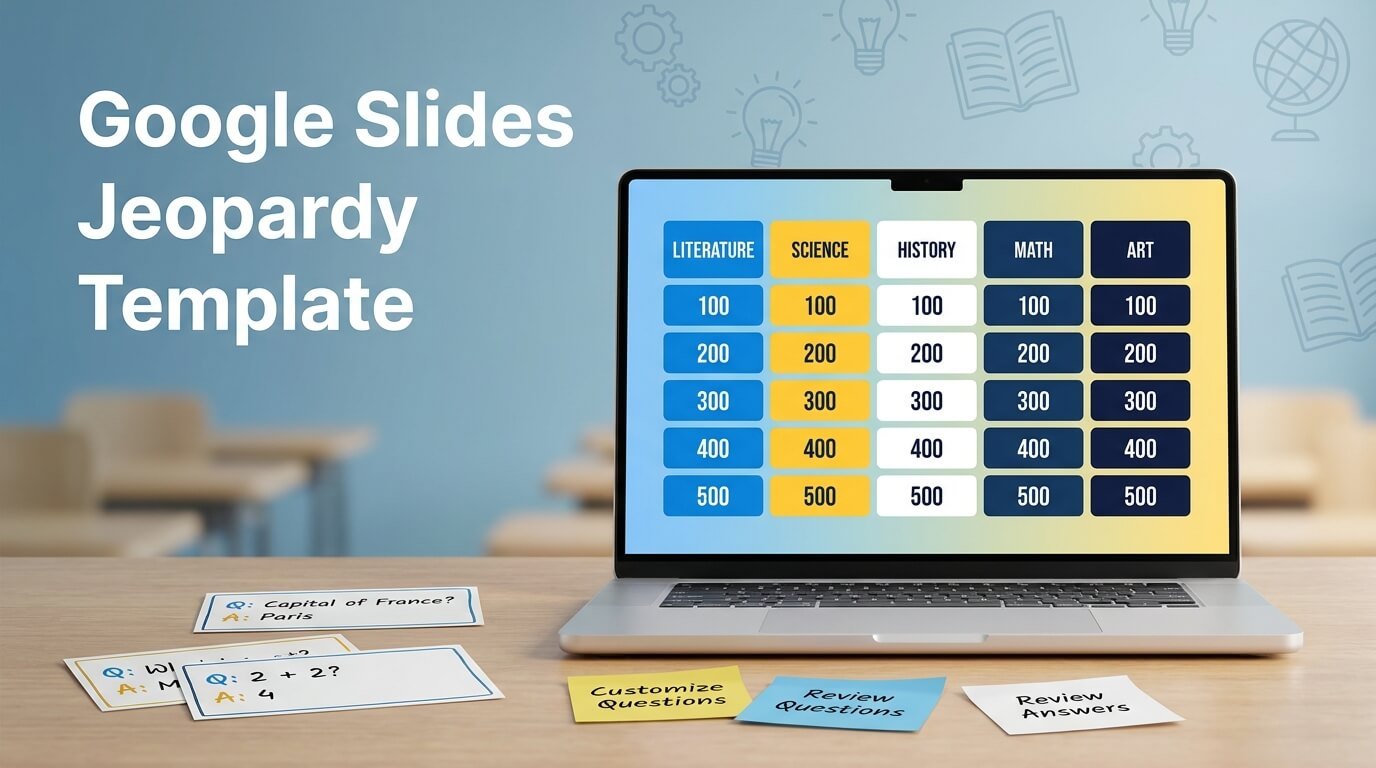
A Google Slides Jeopardy template is a pre-designed presentation that organizes quiz questions into categories and point values. It typically contains a game board, individual question slides, answer slides, and navigation links that help players move between questions.
Instead of designing every slide yourself, you can use an existing layout and customize it for your activity.
A typical template may include:
- Game board: Displays categories and available point values.
- Question slides: Present clues or questions to the players.
- Answer slides: Reveal the correct answers.
- Navigation links: Allow the host to return to the board or move between slides.
- Editable categories: Let you adapt the game to your subject.
- Scoring options: Allow manual scorekeeping or integration with a separate scoring method.
Features vary by template. Check whether your chosen presentation includes working hyperlinks, answer slides, and the number of categories and questions you need.
How to Get a Google Slides Jeopardy Template
You can start with a ready-made presentation or create your own game. If you’re using a third-party template, check its access permissions and licensing conditions before making a copy.
Follow these steps:
- Choose a template. Find a layout that matches your subject, audience, and preferred number of categories.
- Open the presentation. Follow the provider’s instructions to access the file.
- Make a copy. If copying is permitted, save your own version to Google Drive so you can edit it without changing the original.
- Customize the game. Replace the sample categories, questions, and answers with your own content.
- Check the links. Test the point values, question slides, answer reveals, and return-to-board links.
- Prepare the presentation. Open the game in presentation mode and confirm that the text is readable on your display.
If the template is view-only, you may need to use its available copy option or request access from the owner.
How to Make a Jeopardy Game in Google Slides
If you prefer to build a custom game, Google Slides provides the basic tools for creating a presentation with linked slides.
Step 1: Create the Game Board
Open Google Slides and create a blank presentation. Add a title slide if you want, followed by a game board.
Create a grid with several categories across the top and point values beneath each category. For example, you could use five categories and five questions per category.
| Science | Math | History | Geography | Vocabulary |
|---|---|---|---|---|
| 100 | 100 | 100 | 100 | 100 |
| 200 | 200 | 200 | 200 | 200 |
| 300 | 300 | 300 | 300 | 300 |
| 400 | 400 | 400 | 400 | 400 |
| 500 | 500 | 500 | 500 | 500 |
This example gives you 25 question slots. You can change the categories and point values to suit your activity.
Step 2: Create the Question Slides
Create a separate slide for each question. Put the category, point value, and question in a clear, readable layout.
Google Slides Jeopardy Template For example:
Category: Science
Points: 100
Question: What planet is known as the Red Planet?
Keep each question short enough for players to read from a classroom screen. If a question requires a diagram or image, use a visual that helps players understand the task.
Step 3: Add the Answers
Create an answer slide for each question, or include an answer reveal within the question slide if your design supports it.
Google Slides Jeopardy Template For example:
Answer: Mars.
Use a consistent layout so the host can reveal answers without confusing players. Make sure the answer is accurate and matches the question.
Step 4: Link the Game Board to the Questions
To make the game interactive, link each point value to its corresponding question slide.
In Google Slides, select the text or shape you want to link, open the link option, and choose the appropriate slide destination if that option is available in your editor.
Repeat the process for each point value. Then add a return link on the question or answer slide so the host can navigate back to the board.
Important: Do not assume that every link works simply because it appears clickable. Test the links in presentation mode before using the game with players.
Step 5: Customize the Design
Choose a consistent color scheme, readable font, and clear contrast between text and background.
Google Slides Jeopardy Template You can improve the presentation by adding:
- A title slide with the game name.
- Category colors or simple icons.
- A timer for timed questions.
- Sound effects, if appropriate for the setting.
- A final-round question.
- A separate score sheet for teams.
Avoid excessive animation and decorative elements that distract from the questions.
Step 6: Test the Entire Game
Before sharing the presentation, play through the game yourself.
Check that each point value opens the correct question, each answer is displayed correctly, and the return link leads to the right board. Also verify that no text is cut off and that images display properly.
A short test run can prevent interruptions during a lesson, meeting, or game night.
How to Play Jeopardy in Google Slides
Once your presentation is ready, you can use it for a classroom review session, a group activity, or a casual trivia game.
1. Divide Players Into Teams
Split the participants into two or more teams, depending on the size of your group. You can also let individuals compete.
2. Explain the Rules
Explain how players select categories, how points are awarded, and whether incorrect answers lose points. Agree on the rules before the first question.
3. Select a Question
The host opens the game board and selects an available category and point value. The linked slide displays the question.
4. Reveal the Answer
Give players time to respond, then display the answer slide or reveal the answer on the current slide.
5. Update the Scores
Google Slides does not automatically maintain a Jeopardy scoreboard by default. Keep track of points on paper, in a spreadsheet, or with a separate scoring tool.
6. Determine the Winner
After all selected questions have been played, total the scores and announce the winner. You can include a final question if your game rules allow it.
Best Ways to Use a Jeopardy Template
One advantage of an editable template is that the same basic game format can be adapted for many purposes.
Jeopardy for Classroom Review
Teachers can use categories to review lessons before a quiz or exam. For example, a science game might include biology, chemistry, physics, space, and the human body.
Math Jeopardy
Create categories for addition, fractions, multiplication, geometry, and word problems. Adjust the question difficulty to match the learners’ level.
Vocabulary and Language Learning
Use definitions, synonyms, spelling, grammar, and sentence completion as categories. This format can encourage learners to recall information in a competitive setting.
History and Geography
Create questions about historical events, important people, countries, capitals, maps, and landmarks. For geography games, maps and images can make questions more engaging.
Team-Building and Training
Organizations can use Jeopardy-style games to review training materials, workplace procedures, company knowledge, or general trivia.
Family Game Night
Replace academic categories with movies, music, sports, food, and general knowledge. A customized presentation can make the game suitable for different ages.
Google Slides Jeopardy Template vs. Online Jeopardy Game Maker
Google Slides and browser-based game makers can both support quiz activities, but they offer different workflows.
| Feature | Google Slides template | Online game maker |
|---|---|---|
| Customization | Edit presentation slides | Depends on the tool |
| Visual design | Flexible slide layouts | Depends on available themes |
| Question navigation | Often uses hyperlinks | May use built-in navigation |
| Scorekeeping | Usually manual unless supplemented | May be automatic, depending on the tool |
| Setup | Requires preparing and testing slides | May offer a ready-to-play workflow |
| Reuse | Save and edit a copy | Depends on saving and account features |
| Access requirements | Depends on file permissions and account setup | Depends on the service and its plan |
Choose Google Slides if you want control over presentation design and are comfortable editing slides and testing navigation.
Consider an online game maker if you prefer a dedicated interface and need features such as built-in scoring. Verify those features, pricing, account requirements, and sharing options before choosing a platform.
Neither option is automatically better for every situation. The right choice depends on the time you have, the features you need, and how you plan to run the game.
Common Google Slides Jeopardy Problems and Fixes
The Question Link Opens the Wrong Slide
Edit the link on the game board and select the correct destination. Test it again in presentation mode.
The Return-to-Board Link Does Not Work
Check the link on the question or answer slide. Make sure it points to the main game board rather than another question.
The Game Does Not Keep Score
A standard Google Slides presentation does not automatically update scores. Use a separate score sheet, spreadsheet, or compatible scoring tool.
The Text Is Too Small
Increase the font size, shorten long questions, and simplify the layout. Test the slides on the screen you will use during the game.
Players Cannot Access the Presentation
Review the file’s sharing permissions. If the game requires a copy, make sure participants or the host have the appropriate access.
The Template Is Not Editable
Check whether the owner permits copying or editing. If not, look for an authorized copy option or choose another resource with suitable permissions.
Tips for Creating a Better Jeopardy Game
A functional game is more useful than a presentation filled with unnecessary effects. Focus on the following principles:
- Keep categories distinct. Avoid repeating the same questions across different categories.
- Match difficulty to point values. Higher values can represent more challenging questions, provided the rules are clear.
- Use accurate answers. Verify factual questions before presenting them.
- Keep slides readable. Use concise wording, sufficient font size, and clear contrast.
- Test navigation. Confirm that every question and return link works.
- Plan scoring in advance. Decide how to award points and handle incorrect answers.
- Make the game accessible. Avoid relying on color alone to communicate meaning, and provide readable alternatives to important visual information.
- Keep a backup. Save a copy of the presentation and a separate list of questions and answers.
Conclusion
A Google Slides Jeopardy template can simplify the process of creating an interactive quiz for education, training, or entertainment. With an editable game board, well-organized questions, clear answers, and tested navigation, you can build a game that fits your audience and subject.
Start with a template if you want to save setup time, or create your own presentation if you need greater control. Before playing, verify the links, review the questions, confirm access permissions, and decide how scores will be tracked.
Ready to create your game? Open your chosen Google Slides Jeopardy template, customize the categories and questions, and test the presentation before sharing it.
Frequently Asked Questions
Is there a free Google Slides Jeopardy template?
Yes. Some websites offer free Jeopardy-style Google Slides templates. Availability, attribution requirements, editing permissions, and permitted uses vary by provider, so check the specific resource’s terms.
Can I edit a Google Slides Jeopardy template?
You can edit a template if you have the necessary permissions. If the original is view-only, you may need to make an authorized copy before changing the categories, questions, answers, and design.
Can I create my own Jeopardy game without a template?
Yes. You can build a presentation with a game board, category slides, questions, answers, and hyperlinks. A ready-made template can reduce setup time, while a custom presentation gives you more control over the design.
How many categories should a Jeopardy game have?
Five categories with five questions each is a common starting format, but it is not a requirement. Use fewer categories for a short activity or more for a longer game, depending on your available time and audience.
Does Google Slides have automatic scoring?
A standard Google Slides presentation does not provide automatic Jeopardy scoring by default. You can track points manually or use a separate scoring system.
Can I use a Jeopardy template for online classes?
Yes, provided the presentation can be shared with the participants and your chosen meeting or classroom setup supports presenting it. Check access permissions, screen sharing, and navigation before the session.
Can I use a Google Slides Jeopardy template in PowerPoint?
Compatibility depends on the template and how it is converted or imported. Some presentations may transfer successfully, but links, fonts, animations, or formatting can change. Test the converted file before using it.
What is the difference between a Jeopardy template and a Jeopardy game maker?
A template provides a starting design that you customize, often in a presentation editor. A game maker is a tool designed to create or run games through its own interface. Available features vary, so compare editing, scoring, access, and reuse requirements.
Get Started With Your Jeopardy Game →
Sample Classroom Board to Copy Into Slides
Use the board below as a starting point for a classroom game. Copy the five categories into your own Slides deck, then replace the clues with questions for your lesson. Each clue is shown with its answer, so you can build the question and answer slides from the same board.
| Points | Science | History | Math | Reading | Words |
|---|---|---|---|---|---|
| 100 | What planet is known as the Red Planet? Answer: Mars. | Who was the first President of the United States? Answer: George Washington. | What is 7 + 8? Answer: 15. | What is the main character called in a story? Answer: The protagonist. | What is a synonym for happy? Answer: Joyful. |
| 200 | What gas do plants absorb from the air? Answer: Carbon dioxide. | In which year did humans first land on the Moon? Answer: 1969. | What is 12 x 6? Answer: 72. | What do we call the message or lesson of a story? Answer: The theme. | What is an antonym for hot? Answer: Cold. |
| 300 | What force keeps us on the ground? Answer: Gravity. | Which ancient civilization built the pyramids? Answer: Egyptians. | What is 100 divided by 4? Answer: 25. | What is a comparison using like or as called? Answer: A simile. | What does the prefix un- mean? Answer: Not. |
| 400 | What is H2O commonly known as? Answer: Water. | Who wrote the Declaration of Independence? Answer: Thomas Jefferson. | What is 15% of 200? Answer: 30. | Who writes a book? Answer: The author. | What is the plural of child? Answer: Children. |
| 500 | What is the powerhouse of the cell? Answer: Mitochondria. | Which war ended in 1945? Answer: World War II. | What is the square root of 144? Answer: 12. | What is it called when a story gives hints about what will happen later? Answer: Foreshadowing. | What is a word that sounds the same but has a different meaning? Answer: A homophone. |
Google Slides runs in the browser, so there is nothing to install and the deck is easy to share and edit with others. PowerPoint, by contrast, needs a desktop app and file management, while a dedicated browser game maker can be quicker to set up but gives you less control over the slide design itself. Choose Slides when you want a familiar presentation you can edit, share, and present from any browser.
Please note, honestly: this site does not offer a downloadable Google Slides template. That is stated clearly here, so you do not waste time looking for one on this site. Use the board above by copying its categories, clues, and answers into a Slides deck of your own.
1 thought on “Google Slides Jeopardy Template: Free & Editable Game”