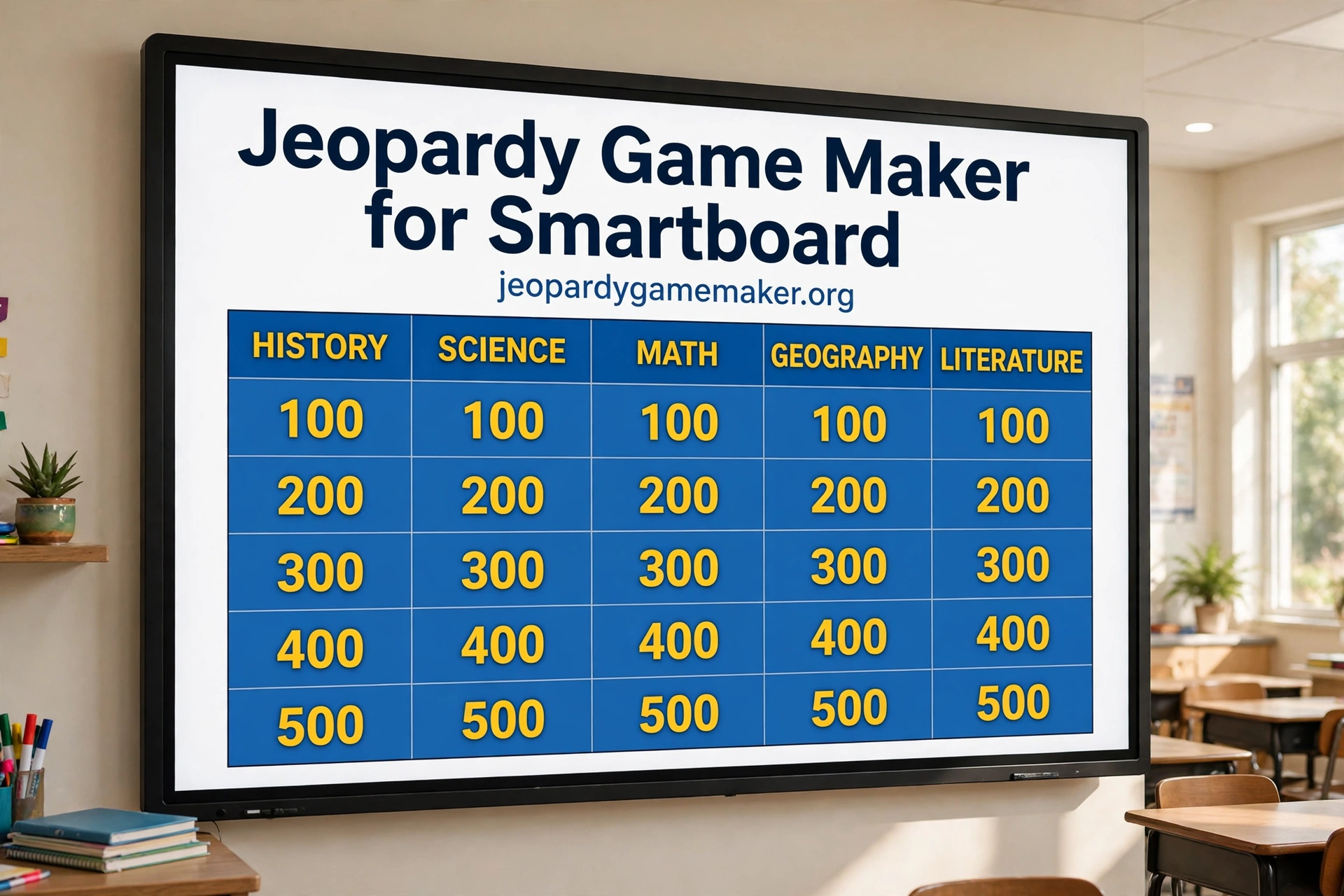
A jeopardy game maker for smartboard lets you build a full Jeopardy-style board in your browser and show it large enough for the whole class to read from the back row.
You do not need to download software, install an app, or create an account on this site to start.
You open the maker, type your categories and clues, and then display the board on your smartboard.
The board fills the screen, the point values stay clear, and students can follow every turn without crowding around a small laptop.
That simple setup is why smartboard teachers like this method for reviews, quizzes, and team games.
What a Smartboard Jeopardy Game Looks Like
A smartboard Jeopardy game is a normal Jeopardy-style board shown on a large touch screen.
The board has five categories across the top and five point values down each column.
Students pick a category and a value, you read the clue aloud, and a team answers before time runs out.
When the answer is right, the team earns the points, and the tile is marked as used.
When the answer is wrong, the next team can try, or you can reveal the correct answer and move on.
Why a Smartboard Works So Well for This Game
A smartboard is made for group work, and a Jeopardy board is made for group play.
The touch screen lets a student tap a tile in front of the class, which feels more like a real game show.
The big display also helps students with weaker eyesight, because the text is much larger than on a phone or laptop.
Teachers can stand to the side, control the pace, and watch the class instead of hiding behind a desk.
How to Make Your Smartboard Game in 5 Steps
Start with your topic, not with the board design, because the topic decides every clue you write.
Pick five categories that match what you just taught, such as animals, numbers, words, science, and history.
Write five clues for each category, from easy at $100 to hard at $500.
Keep each clue short enough to read aloud in one breath, and keep each answer to a few words.
Open the maker on the computer connected to your smartboard and type the title, categories, clues, and answers.
Check the board once on the big screen before the lesson, because small text problems are easier to fix early.
Save the game by copying the share link, so you can reopen the same board later without retyping it.
Play the game in Play mode, add your teams, and tap tiles as students choose them.
Sample Smartboard Board You Can Copy
This sample board is built for a general classroom review, with topics most classes can use right away.
It uses clear categories and short clues that work well when read aloud on a large screen.
You can change any category or clue to match your lesson, and keep the same five-by-five layout.
| Category | $100 | $200 | $300 | $400 | $500 |
|---|---|---|---|---|---|
| Animals | Fastest land animal | Largest ocean animal | Animal that lays eggs and swims | Bird that cannot fly | Mammal that can fly |
| Numbers | 2 plus 3 | 10 minus 4 | Double of 12 | Half of 50 | 7 times 8 |
| Words | Opposite of hot | Past of go | Plural of child | Synonym for happy | Word that means the same as begin |
| Science | Planet closest to the Sun | Gas plants take in | Force that pulls things down | Part of a plant that makes food | Process plants use to make food |
| History | First month of the year | Country home to the Eiffel Tower | Ancient people who built pyramids | First President of the United States | Year humans first landed on the Moon |
The answers for this board are simple, so the game moves fast and stays fun.
For Animals, the answers are cheetah, blue whale, penguin, ostrich, and bat.
For Numbers, the answers are 5, 6, 24, 25, and 56.
For Words, the answers are cold, went, children, joyful, and start.
For Science, the answers are Mercury, carbon dioxide, gravity, leaf, and photosynthesis.
For History, the answers are January, France, Egyptians, George Washington, and 1969.
You can swap any row for your own topic and keep the same balance of easy and hard clues.
Smartboard Board Sizes and Class Sizes
Different class sizes need slightly different pacing, even when the board stays the same.
A small class can play as individuals, with each student picking tiles in turn.
A medium class works well in two teams, with clear turns and quick answers.
A large class works best in three or four teams, so waiting time stays short.
For very large classes, split the room into teams and let each team pick a speaker.
The speaker gives the final answer, but the team can discuss it first in a whisper.
This keeps the game fair, and it stops one loud student from taking over the whole game.
| Class size | Best setup | Why it works |
|---|---|---|
| Under 10 students | Individuals or pairs | Everyone gets many turns |
| 10 to 20 students | Two teams | Simple turns and fast pace |
| 21 to 35 students | Three to four teams | Less waiting and more energy |
| Over 35 students | Team speakers | Discussion stays controlled |
Common Smartboard Problems and Fixes
Even a good setup can hit a small problem, so it helps to know the quick fixes.
If the board looks too small, increase browser zoom and refresh the page.
If a tile does not respond to touch, try tapping once more, or use the mouse as a backup.
If the text looks blurry, check the smartboard resolution and the browser zoom level.
If the internet drops, you may need to wait for it to return, because this maker runs in the browser.
If the sound is not needed, keep the game silent, and let your voice carry the clues.
If students cannot see the bottom row, raise the board position or move the front row back.
If the game runs long, skip the $500 row and finish with the scores you already have.
Most problems are display problems, not game problems, and they can be fixed in under a minute.
| Problem | Quick fix | Prevention tip |
|---|---|---|
| Text too small | Increase browser zoom | Test from the back row first |
| Tile tap not working | Tap again or use a mouse | Test touch before the lesson |
| Glare on screen | Adjust lights or angle | Check the room at lesson time |
| Game runs too long | Skip the hardest row | Set a time limit per turn |
| Internet drops | Wait and reload the board | Keep answers on paper too |
Using a Template to Start Faster
If you are short on time, start from a ready template and edit it for your class.
A template gives you a full board shape, so you do not start from a blank page.
You can keep the categories that fit, change the ones that do not, and rewrite the clues in your own words.
This is useful for a first smartboard game, and a Math Jeopardy board shows a subject board done well.
Once you have played one game, you will know which categories your class enjoys most.
Save that version with a share link, and reuse it as your base for the next topic.
A template is a starting point, not a finished lesson, so always check the clues before you play.
Finding More Game Ideas by Topic
If you need ideas beyond one subject, look at game ideas grouped by topic.
Jeopardy games by topic can help you pick categories for a new class or a new term.
You can borrow a category idea, change the clues, and make the board your own.
This is useful when you teach more than one subject, or when you need a fun Friday board fast.
Topic ideas also help when a class has mixed levels, because you can mix easy and hard categories.
Keep the topic list short for one lesson, and save the rest for future games.
Step by Step Guide for First Time Teachers
A how-to guide walks through the same steps in order, from topic to play.
First, choose your topic and write five categories on paper, then write five clues per category from easy to hard.
Next, type the board into the maker, check it on the smartboard, and set teams, rules, and a time limit.
After the game, note which clues worked well, and rewrite the ones that need fixing for next time.
Honest Limits to Know
This maker runs in a browser, so you need internet and a device connected to your smartboard.
It does not download as an app on this site, and it does not need a signup to build a board.
It does not control your smartboard hardware, so touch, sound, and display settings stay with your device.
It does not save boards to a cloud account here, so keep your share link safe if you want to reuse a board.
It does not mark answers by itself, so you stay in charge of scoring and fairness.
These limits are simple, but knowing them before the lesson avoids surprises during class.
What to do next
Make one board for your next review lesson, and test it on the smartboard before students arrive.
Start with the sample board above, change two categories to match your lesson, and play it once.
If the class enjoys it, save the share link and build a second board for the following week.
Share the game idea with another teacher, and let them adapt the same board for their class.
Keep your boards short at first, and add harder clues only when students ask for a challenge.
Final Thoughts
A smartboard Jeopardy game turns review into a group event, without extra software or cost on this site.
The large screen keeps everyone involved, the team format keeps the game fair, and the simple board keeps the focus on learning.
Build one board, test the display, and let the class enjoy a review that feels like a game.
FAQs
1. Do I need to download anything to play on a smartboard?
No. You open the maker in a browser on the device connected to your smartboard, build the board, and display it.
2. Do I need an account to make a smartboard game?
No. On this site, you can build and play a board without signing up, and you can save it with a share link.
3. Can students tap the board on the smartboard?
Yes. Students can tap tiles on most touch smartboards, and you can use a mouse as a backup if touch is slow.
4. How many teams work best on a smartboard?
Two to four teams work best. Small classes can play as individuals, and large classes can use team speakers.
5. Can I reuse the same board with another class?
Yes. Keep the share link, reopen the same board, and change any clues that do not fit the new class.
6. What if the internet drops during the game?
Wait for the connection to return and reload the board, and keep your answers on paper so the game can continue.