Quick Answer
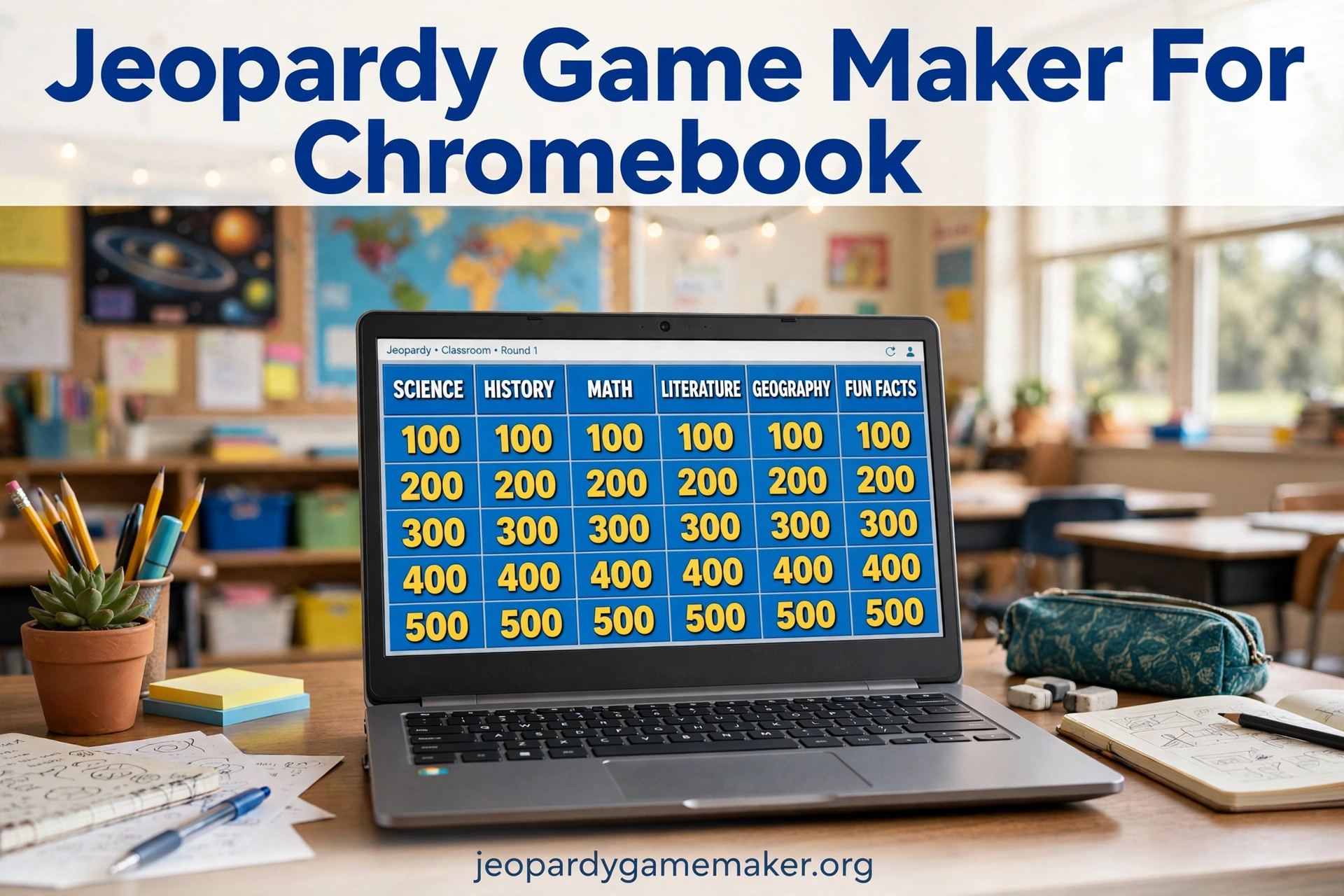
A jeopardy game maker for chromebook lets you build a Jeopardy-style board in a browser and play it in class.
You do not install an app, and you do not need admin rights on a school device.
You open the maker, type your categories and clues, and play the board on the same Chromebook.
Why School Chromebooks Block Most Tools
School Chromebooks are often locked down for a good reason.
Students cannot install apps without permission, and many sites ask for an account first.
That setup protects the device, but it can also block a simple class game.
A browser tool avoids both problems, because nothing is installed and no account is needed.
You only need a working browser and an internet connection for the game to load.
If the school network blocks a site, try the same link on the teacher network first.
How It Works on a Chromebook
Start with a clear topic for your lesson, such as fractions, states, or vocabulary.
Write five categories that match that topic, with five clues in each category.
Set point values from low to high, so early clues feel easy and later clues feel harder.
Open the board in Play mode, split the class into teams, and read each clue aloud.
Teams answer, the host reveals the answer, and the score is updated on the board.
With a jeopardy game maker for chromebook, the whole game stays in one browser tab.
If you want step-by-step help, use the how-to guide before you build your first board.
A Sample Classroom Board
Use this board as a starting point for a short review lesson.
It uses five common subjects, so you can swap any category for your own topic.
Keep clues short, so students can read them from the back of the room.
Read one clue at a time, and give teams a short time limit to answer.
A jeopardy game maker for chromebook makes this board easy to reuse with new clues each week.
Try a Math Jeopardy board if you want a ready subject board to practise with first.
| Science | History | Math | Geography | Vocabulary |
|---|---|---|---|---|
| $100 What gas do plants take in from the air? / Carbon dioxide | $100 First month of the year? / January | $100 What is 2 plus 3? / 5 | $100 Capital of France? / Paris | $100 Opposite of hot? / Cold |
| $200 Planet closest to the Sun? / Mercury | $200 Country home to the Eiffel Tower? / France | $200 What is 10 minus 4? / 6 | $200 Longest river in the world? / Nile | $200 Past tense of go? / Went |
| $300 Force that pulls things down? / Gravity | $300 Ancient people who built pyramids? / Egyptians | $300 What is double of 12? / 24 | $300 Desert that covers most of North Africa? / Sahara | $300 Plural of child? / Children |
| $400 Part of a plant that makes food? / Leaf | $400 First President of the United States? / George Washington | $400 What is half of 50? / 25 | $400 Capital of Japan? / Tokyo | $400 Synonym for happy? / Joyful |
| $500 Process plants use to make food? / Photosynthesis | $500 Year humans first landed on the Moon? / 1969 | $500 What is 7 times 8? / 56 | $500 Mountain range that separates Europe and Asia in Russia? / Ural Mountains | $500 Word that means the same as begin? / Start |
Try a Science $100 clue such as: What gas do plants take in from the air?
Try a Math $200 clue such as: What is 8 times 7?
Try a Vocabulary $300 clue such as: What word means the opposite of brave?
These short clues keep the pace fast and keep every team in the game.
Setting Up for a Class
Plug the Chromebook into a projector or a large classroom screen before the lesson starts.
Open the game in full screen, so the board is large enough for every student to see.
Test one clue and one answer before students arrive, so you know the sound and layout work.
Split the class into two to four teams, and write team names on the board for easy scoring.
Give each team a clear signal, such as a raised hand or a table bell, to answer first.
If you use Google Classroom, post the game link there so students can review the board later.
Post only the link, not a file, so students do not need to download anything to view it.
A jeopardy game maker for chromebook fits this setup well, because the teacher device does the display work.
For more ideas, check the Jeopardy games by topic page for category ideas by subject.
Browser Maker Compared With Slide Decks
Many teachers start with slides, because slides feel familiar and easy to share.
Slides need many links, one for each clue and answer, and that work grows fast.
A browser board keeps clues, answers, scores, and the board in one place.
That single place saves time when you reuse the same game with another class.
| Feature | Browser Board | PowerPoint Deck | Google Slides Deck |
|---|---|---|---|
| Install needed | No | App needed | No |
| Admin rights needed | No | Often yes | No |
| Team scoring built in | Yes | Manual | Manual |
| Share by link | Yes | File only | Link, with access setup |
| Edit a clue fast | Yes | Many slides to fix | Many slides to fix |
A slide deck can still work for a one-off game with very few clues.
For a repeat review game, a browser board is faster to edit and easier to run.
You can change one clue without hunting through dozens of linked slides.
You can also reuse the same board structure and swap in new clues each week.
Chromebook Setup Checklist
Use this checklist before your first game, so the lesson does not stall on tech.
Check each item once, and you will know the game is ready before students arrive.
| Check | What to Do | Why It Matters |
|---|---|---|
| Browser | Open Chrome and load the board | The game runs in the browser |
| Projector | Connect and test full screen | Every student can see the board |
| Sound | Test volume from the front | Clues are read aloud clearly |
| Teams | Name two to four teams | Scoring stays clear and fair |
| Time | Allow 20 to 30 minutes | A full board fits one lesson |
| Backup | Keep a printed clue list | You can keep playing if Wi-Fi drops |
If Wi-Fi drops during play, keep the printed list and read clues aloud.
Teams can still track scores on paper until the connection returns.
If the board looks small on screen, zoom the browser to 125 percent for larger text.
If a student Chromebook cannot load the board, use only the teacher device for display.
Classroom Tips That Save Time
Write clues at the right level for your class, not at the level of a quiz show.
Start with one easy clue in each category, so every team gets an early win.
Mix easy, medium, and hard clues, so stronger teams do not run away with the game.
Read the clue, pause, and let teams discuss for a few seconds before they answer.
Ask the answering team to explain the answer in one sentence when time allows.
That short explanation turns a fun game into a real review lesson.
Use the same board for homework review by posting the link for students to revisit.
Students who missed class can still see the categories and practise the clues at home.
A jeopardy game maker for chromebook also helps here, because students can reopen the same link at home.
Troubleshooting on a Locked Device
If the page will not load, refresh once and check that Wi-Fi is connected.
If the board looks blank, check that the browser is not in a restricted guest mode.
If you cannot type in the editor, check that the page has fully loaded first.
If the projector shows only part of the board, set the display to mirror, not extend.
If scores reset after a refresh, note the scores on paper before you reload.
A jeopardy game maker for chromebook works best when you test it once before class.
That one test catches most display and connection problems before students arrive.
Chromebook games for a mixed-device classroom
Many classrooms are not all-Chromebook rooms. Some students have a Chromebook, some have a tablet, and the teacher has a laptop. A browser board is useful here because every device opens the same link, and no one needs to install anything.
Let the teacher device do the display work. Open the board on the classroom screen, and let student devices stay closed during play. That way a slow tablet or a low battery does not stop the game.
If a student Chromebook cannot load the board, do not stop the lesson to fix it. Keep the game on the main screen, let that student answer verbally, and check the device after class.
Share the same link for homework review. Students can reopen the board at home on any device, and the categories they saw in class will look the same.
Chromebook games when the projector is the only screen
When the projector is the only screen, the teacher device does all the work. Student devices can stay closed, and the game still runs well.
Open the board on the teacher Chromebook and set the display to mirror, not extend. Mirroring shows the class exactly what you see.
Use full-screen mode and zoom until the smallest text is readable from the back row. Test this before students arrive, not after.
Keep a printed clue list beside you as a backup. If the projector cable fails, you can read clues aloud and keep score on paper.
What to Do Next
A jeopardy game maker for chromebook is the fastest way to test this plan in one lesson.
- Pick one lesson topic for this week.
- Write five categories and five clues for each category.
- Test the board on the classroom Chromebook and projector.
Use the template page if you want a ready-made starting board.
Then open your own board, swap in your lesson clues, and play it with your class.
Final Thoughts
A Chromebook should not stop a good review game.
With a browser board, you skip installs, skip admin requests, and skip slide links.
You get a clear board, team scores, and a link you can share with students.
Start with one short game, learn what your class enjoys, and build from there.
A jeopardy game maker for chromebook keeps that first game simple, so you can focus on teaching, not tech.
The best board is the one you can run again next week with new clues.
FAQs
1. Does a Chromebook game need a Google account?
No, students do not need an account to view or play a board in the browser.
2. Can I use this board with Google Classroom?
Yes, post the game link in Google Classroom so students can open it in Chrome.
3. Will it work on a projector or smartboard?
Yes, connect the Chromebook to the display and open the board in full screen.
4. Can I edit clues after I build the board?
Yes, open the board, change a clue or answer, and play the updated board.
5. Where can I find more board ideas?
Topic pages on the site list category ideas by subject, so start there for your next board.
6. Do students need to install anything on a Chromebook to play?
No.
2 thoughts on “Jeopardy Game Maker for Chromebook – Play in Class Without Installing Anything”