Quick Answer
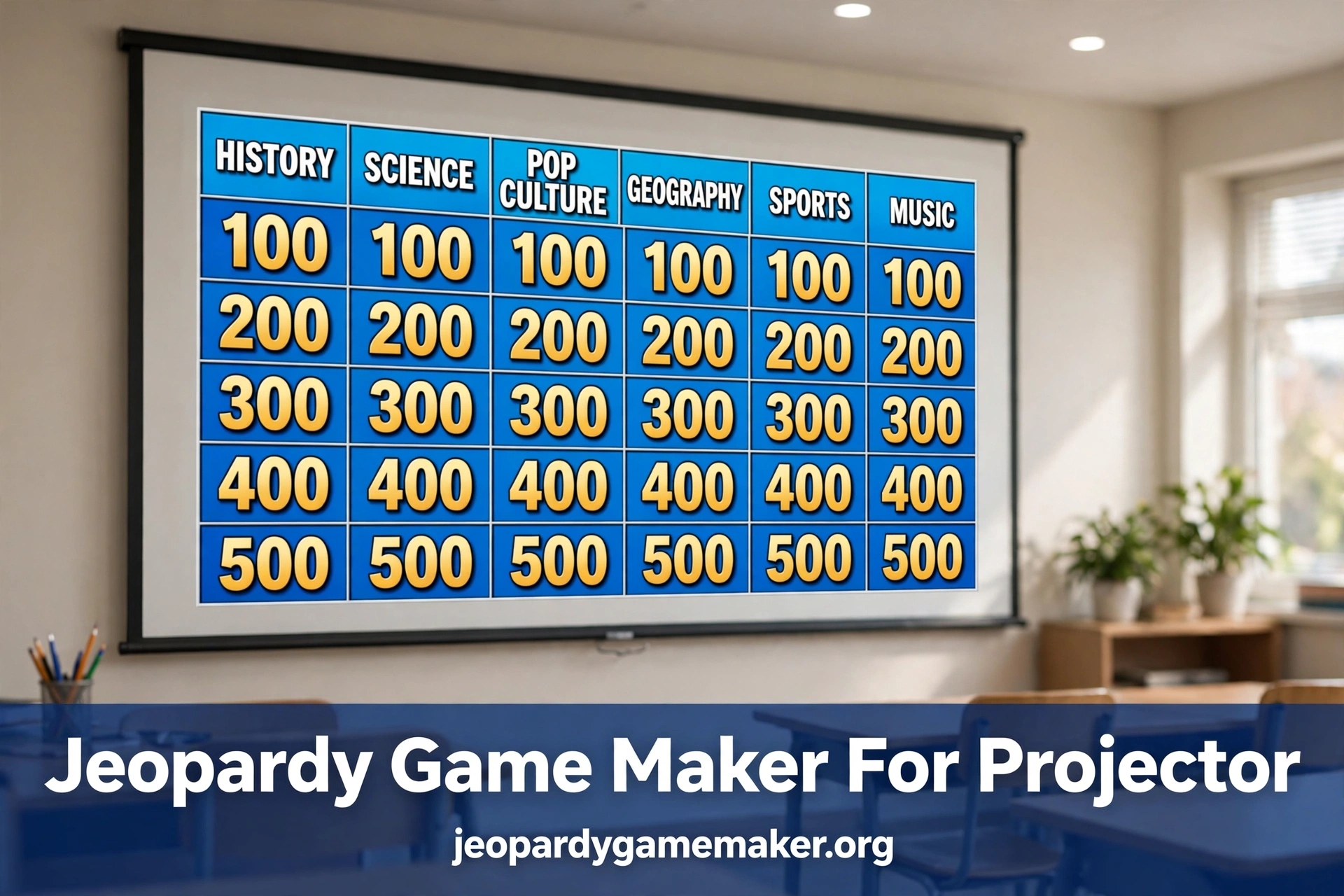
A jeopardy game maker for projector lets you show a Jeopardy-style board on a large classroom screen.
You build the board in a browser, connect a laptop to a projector, and play it in full screen.
Every student can see the categories, the point values, and the score from the back of the room.
Why a Big Screen Changes the Game
A small laptop screen works for one person, but it fails for a full class.
Students at the back cannot read small text, and they stop paying attention fast.
A projector fixes that problem by making the board the largest thing in the room.
The host reads one clue, the class talks, and the board keeps the pace clear.
A big screen also keeps scoring honest, because every team sees the same score.
No team has to ask what the score is, and no team can claim a point it did not earn.
How the Projector Setup Works
Start with the laptop you will use to host the game.
Open the maker in Chrome, and load the board you want to play.
Connect the laptop to the projector with a cable, or use a wireless display if your room supports it.
Set the display to mirror, so the projector shows exactly what the laptop shows.
Open the board in full screen, and check that all five categories fit on screen.
If the text looks small, zoom the browser to 125 percent before students arrive.
A jeopardy game maker for projector works best when this test happens before class, not during it.
Projector Setup Checklist
Use this checklist once, and you will avoid most projector problems.
Check each item in order, and fix any problem before the game starts.
| Check | What to Do | Why It Matters |
|---|---|---|
| Cable | Plug in and test the connection | A loose cable wastes class time |
| Display | Set the display to mirror | The class sees the host board |
| Full screen | Open the board in full screen | The board fills the screen |
| Zoom | Set zoom to 125 percent if needed | Back-row students can read it |
| Sound | Test volume from the front | Clues are heard clearly |
| Teams | Name two to four teams | Scoring stays clear and fair |
| Backup | Keep a printed clue list | You can keep playing if Wi-Fi drops |
If any check fails, fix it first, and test one tile before you start.
A short test takes two minutes, and it saves a long pause later.
A Sample Projector Board
Use this board as a starting point for a classroom review game.
It uses five common subjects, so you can swap any category for your own topic.
Keep clues short, so students can read them from the back of the room.
Read one clue at a time, and give teams a short time limit to answer.
A jeopardy game maker for projector makes this board easy to reuse with new clues each week.
Try a Math Jeopardy board if you want a ready subject board to practise with first.
| Science | History | Math | Geography | Words |
|---|---|---|---|---|
| $100 | $100 | $100 | $100 | $100 |
| $200 | $200 | $200 | $200 | $200 |
| $300 | $300 | $300 | $300 | $300 |
| $400 | $400 | $400 | $400 | $400 |
| $500 | $500 | $500 | $500 | $500 |
Try a Science $100 clue such as: What gas do plants take in from the air?
Try a Math $200 clue such as: What is 8 times 7?
Try a Words $300 clue such as: What word means the opposite of brave?
These short clues keep the pace fast and keep every team in the game.
Hosting on a Big Screen
Stand where you can see both the board and the class.
Read the clue out loud, pause, and let teams talk for a few seconds.
Ask the answering team to give one clear answer, not a long guess.
Reveal the answer on the board, update the score, and move to the next clue.
Keep the score where every team can see it at all times.
If a team is far behind, let the lowest team pick the next clue.
That small rule keeps the game fair and keeps every team in play.
With a jeopardy game maker for projector, the host controls the board while the class watches one shared screen.
For more ideas, check the Jeopardy games by topic page for category ideas by subject.
Browser Board Compared With Slide Decks
Many teachers start with slides, because slides feel familiar and easy to share.
Slides need many links, one for each clue and answer, and that work grows fast.
A browser board keeps clues, answers, scores, and the board in one place.
That single place saves time when you reuse the same game with another class.
| Feature | Browser Board | PowerPoint Deck | Google Slides Deck |
|---|---|---|---|
| Install needed | No | App needed | No |
| Projector setup | One browser tab | Many linked slides | Link, with access setup |
| Team scoring built in | Yes | Manual | Manual |
| Share by link | Yes | File only | Link, with access setup |
| Edit a clue fast | Yes | Many slides to fix | Many slides to fix |
A slide deck can still work for a one-off game with very few clues.
For a repeat review game, a browser board is faster to edit and easier to run.
You can change one clue without hunting through dozens of linked slides.
You can also reuse the same board structure and swap in new clues each week.
Troubleshooting Before Class
If the projector shows only part of the board, set the display to mirror, not extend.
An extended display can put the board on the wrong screen, and the class sees a blank desktop.
If the board looks stretched, check the projector resolution, and try a standard setting first.
If the text is too small, increase the browser zoom, and move the projector closer if you can.
If the image is blurry, check the cable, and try a different port on the laptop.
If Wi-Fi drops during play, keep the printed clue list and read clues aloud.
Teams can still track scores on paper until the connection returns.
If a student device cannot load the board, use only the teacher device for display.
A jeopardy game maker for projector fits this setup well, because the teacher device does the display work.
Classroom Tips That Save Time
Write clues at the right level for your class, not at the level of a quiz show.
Start with one easy clue in each category, so every team gets an early win.
Mix easy, medium, and hard clues, so stronger teams do not run away with the game.
Read the clue, pause, and let teams discuss for a few seconds before they answer.
Ask the answering team to explain the answer in one sentence when time allows.
That short explanation turns a fun game into a real review lesson.
A jeopardy game maker for projector also helps here, because students can reopen the same link at home.
Use the same board for homework review by posting the link for students to revisit.
Students who missed class can still see the categories and practise the clues at home.
Playing at Home or at a Party
A projector is not only for classrooms, and the same setup works at home.
Connect a laptop to a TV, open the board in full screen, and play with family teams.
Keep the rules simple, and let younger players join a team with an older player.
Use short clues, clear team names, and one host rule for who answers first.
For a party, keep the game to 20 or 30 minutes, so it stays fun and fast.
A jeopardy game maker for projector works at home too, because the same board can move from class to TV.
If you do not have a projector, a large TV works just as well for a small group.
The board should be readable from the farthest seat, not just from the front row.
Test the screen size before guests arrive, so the game starts on time.
Smartboard and TV Notes
A smartboard works like a projector, but it adds touch control for the host.
Tap a tile to open a clue, and tap again to return to the board.
Keep the host near the screen, so taps are quick and clear.
A TV works well for a small class or a family game night.
Use a long cable, or a wireless display, so the laptop can sit near the host.
In both cases, full screen mode matters more than fancy effects.
A clear board, a clear voice, and a clear score win every time.
What to Do Next
- Pick one lesson topic for this week.
- Write five categories and five clues for each category.
- Test the board on the classroom projector and screen.
Use the template page if you want a ready-made starting board.
Then open your own board, swap in your lesson clues, and play it with your class.
If you want step-by-step help, use the how-to guide before you build your first board.
Final Thoughts
A projector should make a good game better, not harder to run.
With a browser board, you skip installs, skip slide links, and skip paper scoring.
You get a clear board, team scores, and a link you can share with students.
Start with one short game, learn what your class enjoys, and build from there.
A jeopardy game maker for projector keeps that first game simple, so you can focus on teaching, not tech.
The best board is the one you can run again next week with new clues.
FAQs
1. Do I need special software for a projector game?
No, you only need a browser, a laptop, and a projector or large screen.
2. Will the board fit on a normal classroom projector?
Yes, open the board in full screen and set the display to mirror for the best fit.
3. Can students see the board from the back of the room?
Yes, if you use full screen mode and increase the browser zoom when the text looks small.
4. What if the projector cable does not work?
Check the cable and port first, try another port, and keep a printed clue list as a backup.
5. Can I use a TV or smartboard instead of a projector?
Yes, a TV or smartboard works the same way, as long as the board is in full screen.
6. Do students need to install anything to play on a projector?
No.